Slack is a messaging app for businesses that connects people to the information they need. By bringing people together to work as one unified team, Slack transforms the way organizations communicate.
You can integrate Slack with Gorgias so, when a new ticket is created, it can post a notification in the Slack channel of your choice.

Post a notification in Slack when a ticket is created
When a new ticket is created in Gorgias, you can post a notification about it in the Slack channel of your choice. First create an incoming webhook in Slack, then use it in a Gorgias HTTP integration.
In Slack
1. Go to Slack's marketplace, then click Build > Create a new app. Or you can click this link.
2. Choose Blank app, then give you app a Name and Pick a Workspace.
3. From your new app,(you can find it on api.slack.com), navigate to Features > Incoming webhooks. Activate the toggle to turn incoming webhooks On.
4. Click Add New Webhook at the very bottom of the page.
5. On the next page, choose the Slack channel that you want to use and click Allow.
6. Copy the Webhook URL.
In Gorgias
1. Create a new HTTP integration.
2. Paste the Webhook URL into the URL field.
3. Give your new integration a name and select Ticket Created as the trigger.
4. Select Post as the method.
5. Paste the code from below (JSON) into the body to pass the ticket information to Slack.
{
    "text": "New ticket <https://{{ticket.account.domain}}.gorgias.com/app/ticket/{{ticket.id}}|*{{ticket.subject}}*> from *{{ticket.customer.name}}*",
    "attachments": [
        {
            "text": "{{ticket.first_message.body_text}}",
            "title": "{{ticket.subject}}",
            "title_link": "https://{{ticket.account.domain}}.gorgias.com/app/ticket/{{ticket.id}}"
        }
    ]
}
6. Click Add Integration.
Forward emails to a Slack channel (optional)
You can also forward emails into a Slack channel. Slack generates an email address for the channel, and a Gorgias Rule can send email to that address, so emails from any app or contact form can be posted in the channel.
In Slack
1. Open the details of the Slack channel that you want to receive emails in.
2. Select the Automations tab.

3. Click Send emails to this channel.
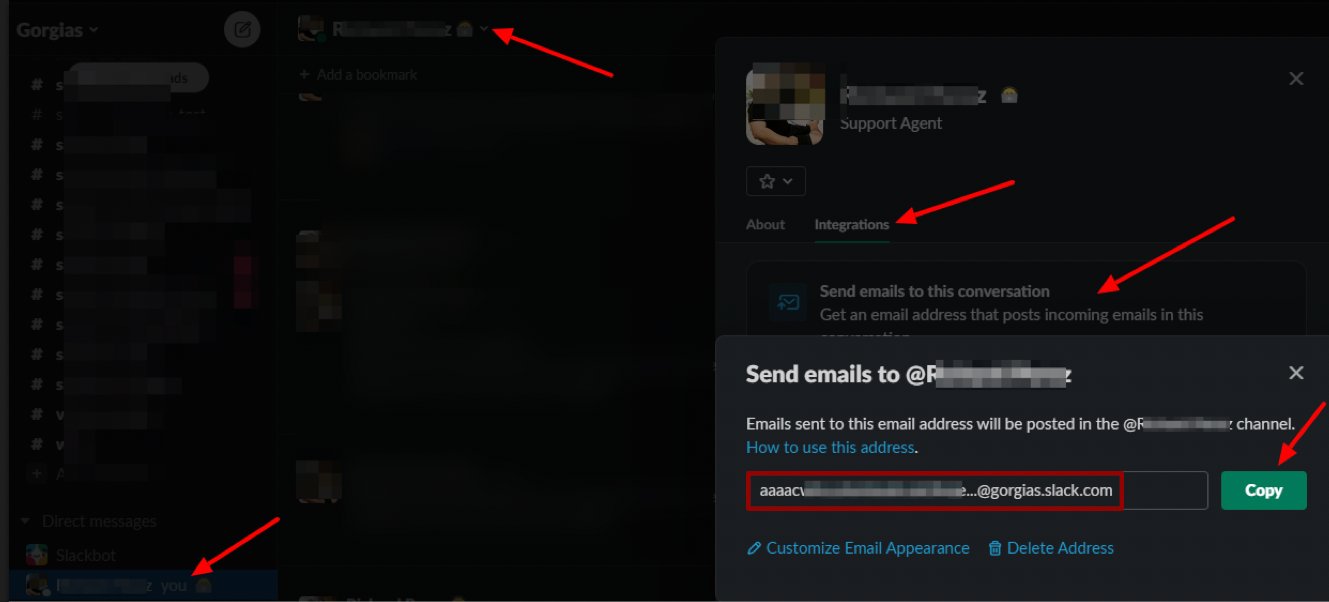
4. Copy the generated email address.
In Gorgias
1. Create a Rule in Gorgias.
2. Select the event/s to trigger (like Ticket Created, Ticket assigned to user, etc.).
3. Select the Gorgias channel/integration you are specifying.
4. Select the action to Send Email and paste the forwarding email address from the Slack channel to the To field.
5. Fill in the other fields depending on your preference.
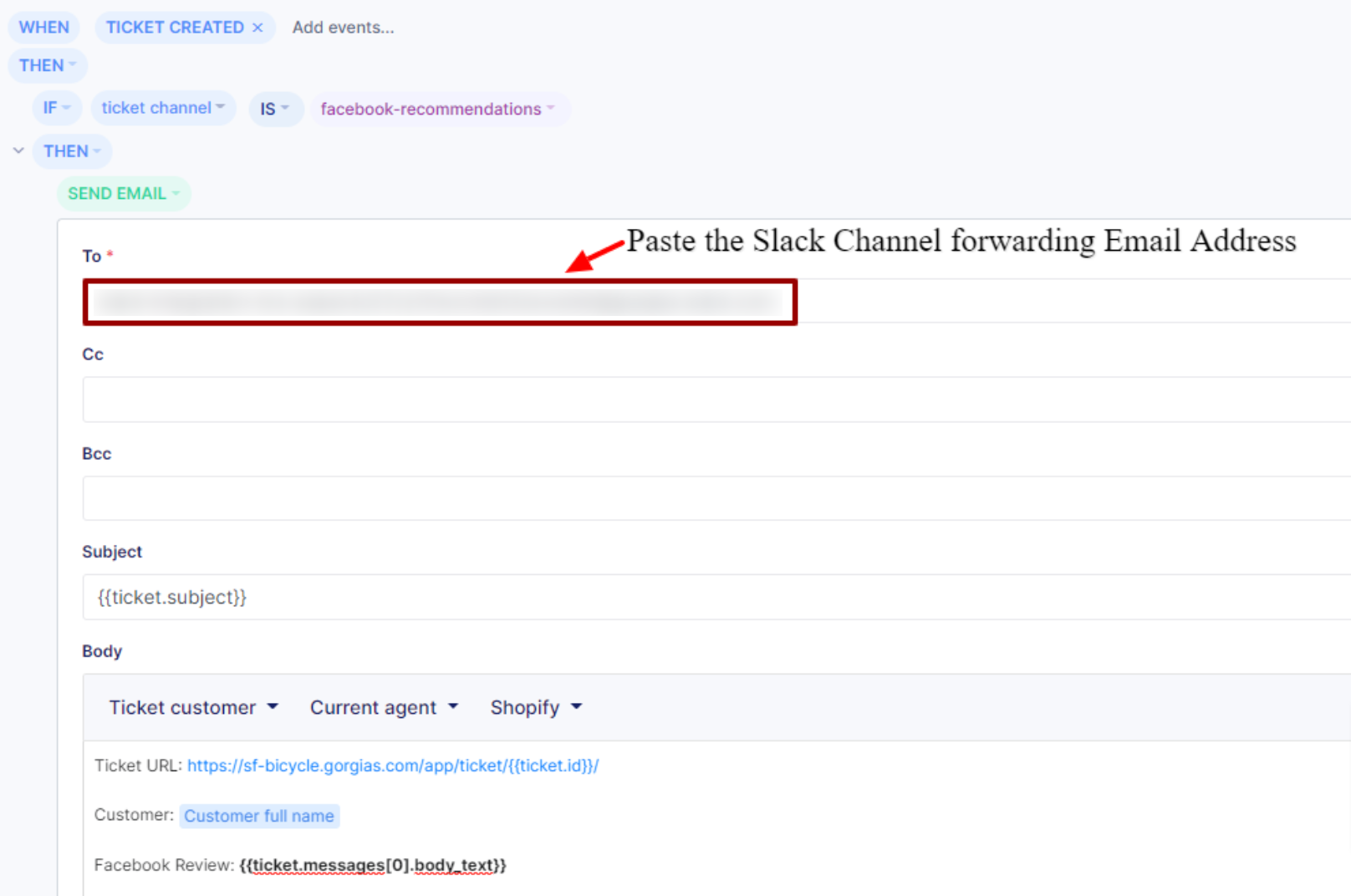
This isn't limited to a channel - you can do it with Slack DMs as well so the user receives the notification in Slack DM about a ticket to work on.
FAQs
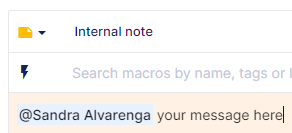
What if I'm mentioned in an internal note?
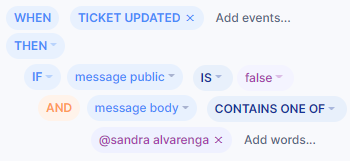
If a user is mentioned in an internal note, just be specific in your Gorgias Rule - include the whole name, but don't forget to include the message public is false Rule condition so it directs to the internal note specifically.
Can I get Slack notifications based on ticket Tags or Channels?
No - the only triggers available in the HTTP integration settings are: Ticket Created, Ticket Updated, and Ticket Message Created which means that all incoming tickets will cause a notification to be posted on the Slack channel of your choice, regardless of the Channel or Tags used.